
With Homer you can turn an inexpensive Android tablet into a standalone
audiobook and podcast player for an elderly user, visually impaired person, or someone with limited tech experience.
It's a simple DIY project that takes about 30 minutes.
What you'll need
- An Android tablet running Android 7 or newer, with a camera
- A "smart" cover case (highly recommended) - one that wakes the tablet when opened
and puts it to sleep when closed (look for "auto wake/sleep" in the case
description). Smart cover case lets the user turn the player on
and off simply by opening and closing the cover, without pressing the small
power button.
Tablets that support it have a Hall effect sensor. Inexpensive Lenovo tablets usually include this sensor. - Wi-Fi access during setup (not needed for listening)
- Audiobook files ready to load and podcasts you want to configure (see how to add audiobooks and how to set up podcasts)
What is lockdown mode?
Homer's lockdown mode (also called "kiosk mode") locks the user into the player interface. They can't accidentally switch to another app, open settings, or see notifications. The tablet becomes a single-purpose device: a simple audio player with no way to "break" it.
This makes it ideal for caregivers, family members, or libraries who want to create a simple, foolproof device for seniors.
Setting it up
Lockdown mode uses a small helper app called Homer Kiosk Setup.
It uses a standard Android mechanism - the same one companies use to manage
work devices - to grant Homer permission to lock the screen. The helper app
does nothing else: it just enables that one capability.
Installation steps
⚠️ This will erase everything on the tablet.
A factory reset removes all data, accounts, and installed apps.
This is expected - you're turning the tablet into a single-purpose device. Make sure you've backed
up anything you need before starting.
Please read all steps before you begin.
-
Factory reset the tablet.
Go to Settings → System → Reset → Factory data reset (the exact path varies by device). This wipes everything and returns the tablet to its initial state. -
Stop at the welcome screen.
After the reset, you'll see a language selection screen. Do not proceed with normal setup. Instead, tap the screen 6 times (on an empty area, not on a button) to start the special provisioning mode. -
Connect to Wi-Fi.
Follow the on-screen instructions to connect to a Wi-Fi network. The tablet may download additional system components. -
Scan the QR code.
A camera scanner will appear. Point it at the QR code below. This tells the tablet to install Homer Kiosk Setup with device-management privileges. -
Finish the installation.
Follow any remaining on-screen prompts to complete setup. -
Verify kiosk mode is available.
Open the apps screen and launch Homer Kiosk Setup. It should display: "Full kiosk mode is available." -
Install Homer Audio Player.
Open the Play Store and install Homer Audio Player. -
Add content and enable lockdown.
Launch Homer, add your audiobooks or set up podcasts, and adjust any settings (screen orientation, flip-to-stop, etc.). Then open settings → Lockdown settings and enable kiosk mode.
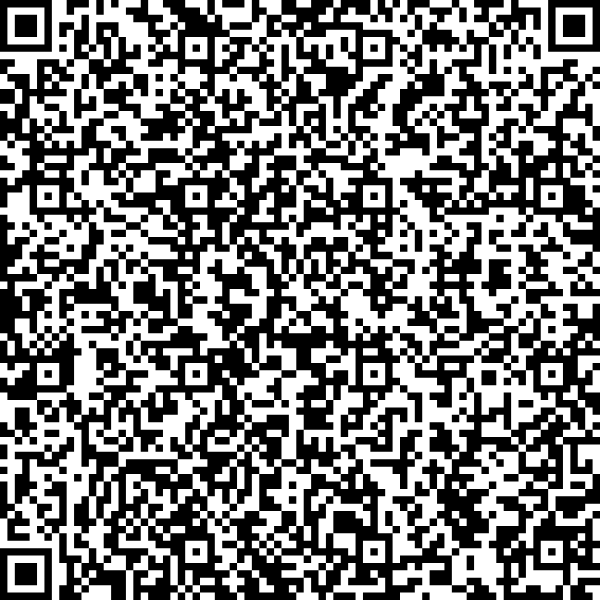
If the QR code doesn't work: Some Android devices don't support QR provisioning. If tapping the welcome screen 6 times doesn't open a camera scanner, your tablet may not be compatible. Contact me for an alternative setup method.
Tips
- You can enable and disable lockdown mode anytime in Homer's settings.
- Some actions require temporarily disabling lockdown mode, e.g.:
- copying audiobook files from a computer via USB,
- changing system settings like Wi-Fi.
-
Restart the tablet after setup to confirm it launches Homer automatically.
Follow any prompt to make Homer the home app if asked.
This also ensures the player will restart on its own if the battery runs out and the device powers off. - For best battery life, consider enabling airplane mode if you're not using podcasts that need to download new episodes.
Reverting to a regular tablet
- Disable lockdown mode in Homer Audio Player.
- Open system settings and perform a factory reset.
- Follow the normal Android setup process.
Alternatively, use the Homer Kiosk Setup app to remove the management privilege. Either way, a factory reset afterwards ensures the device is fully restored to its original state.